
LIFE HAPPENS!
Whether you’re on vacation, traveling for work, or have a conflict, you can easily mark yourself as unavailable in The Club Schedule. This ensures you won’t be assigned roles during those dates.
What is an Absence?
An absence is a date range when you’re unavailable for club meetings or role assignments. When you create an absence:
✅ You won’t be assigned any roles during those dates
✅ The schedule algorithm automatically skips you
✅ Your club admins can see your absence dates (to plan accordingly)
✅ The absence applies immediately to future schedule generation
When to Create an Absence
✅ Vacation or holiday travel
✅ Business trips
✅ Family commitments
✅ Medical appointments
✅ Temporary unavailability
✅ Sabbaticals or extended leaves
💡 PRO TIP: Create absences as soon as you know your dates. This helps admins plan better schedules.
How to Create an Absence
Schedules move through three status levels:
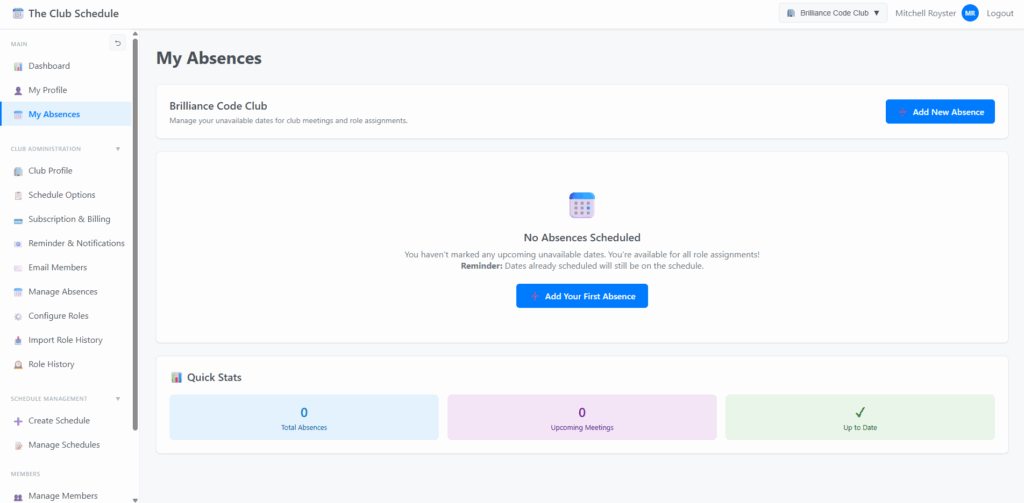
Step #1: Navigate to Absences
- 1. Log in to The Club Schedule
- 2. Click your name in the top right corner
- 3. Click “My Absences” from the dropdown menu
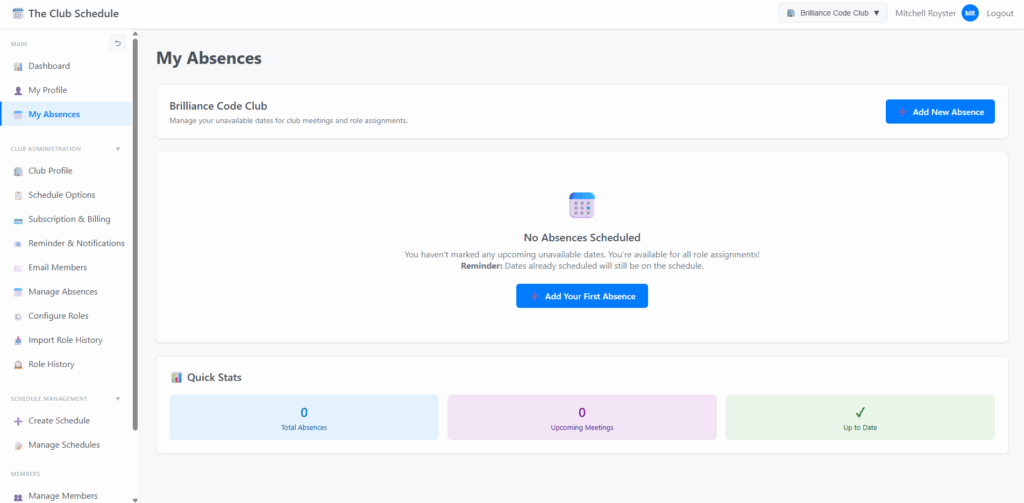
Step #2: Click “Add New Absence”
- 1. You’ll see a list of your current absences
- 2. Click the blue “Add New Absence” button (top right)
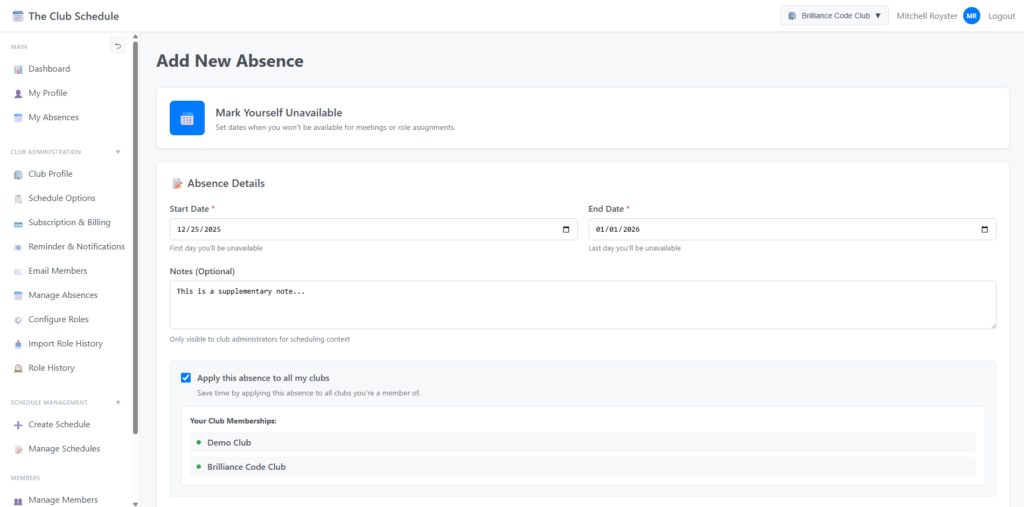
Step #3: Enter Absence Details
- 1. Start Date (Required)
- 1.1 Select the first day you’ll be unavailable
- 1.2 Cannot select past dates
- 1.3 Example: If you’re leaving Friday, select Friday
- 2. End Date (Required)
- 2.1 Select the last day you’ll be unavailable
- 2.2 Must be same day or after Start Date
- 2.3 Example: If you return Sunday, select Sunday
- 3. Notes (Optional)
- 3.1 Add context for your absence (e.g., “Family vacation in Hawaii”)
- 3.2 Only club admins can see these notes
- 3.3 Members cannot see each other’s absence notes
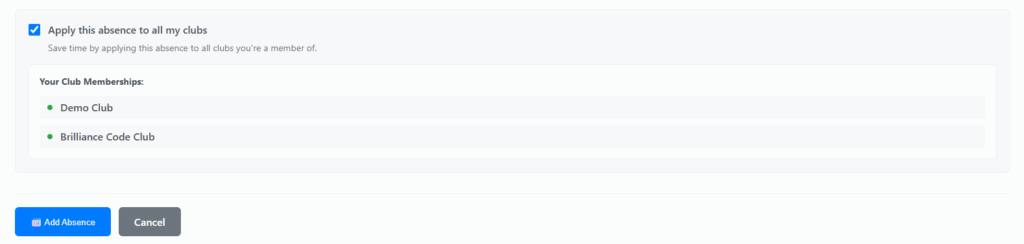
Step #3.1: Apply to Multiple Clubs (If Applicable)
- If you’re a member of multiple clubs, you’ll see a checkbox:
- ☑ Apply this absence to all my clubs
- This saves time if you want the same absence across all memberships
- You’ll see a list of your clubs below the checkbox
Step #4: Submit the Absence
- Review your dates
- Click “📅 Add Absence” button
- You’ll see a confirmation message
- You’ll be redirected to your absence list

What Happens After Submitting an Absence?
Immediately
- Your absence is saved to the system
- It appears in your “My Absences” list
- Club admins can see it in their admin absence management view
Future Schedules
- When admins create new schedules that include your absence dates, you won’t be assigned
- The algorithm distributes roles fairly among available members
Existing Schedules
- Published schedules are NOT changed
- Draft schedules may still show your assignments (admins can manually adjust)
**Important**
If you’re already assigned to a role in a published schedule during your absence dates, you need to:
- Decline the assignment in the schedule
- Or contact your VP of Education to find a replacement
Managing Your Absences
Viewing Your Absences
- Go to “My Absences” from your user menu
- You’ll see all upcoming and past absences
- Upcoming absences are highlighted
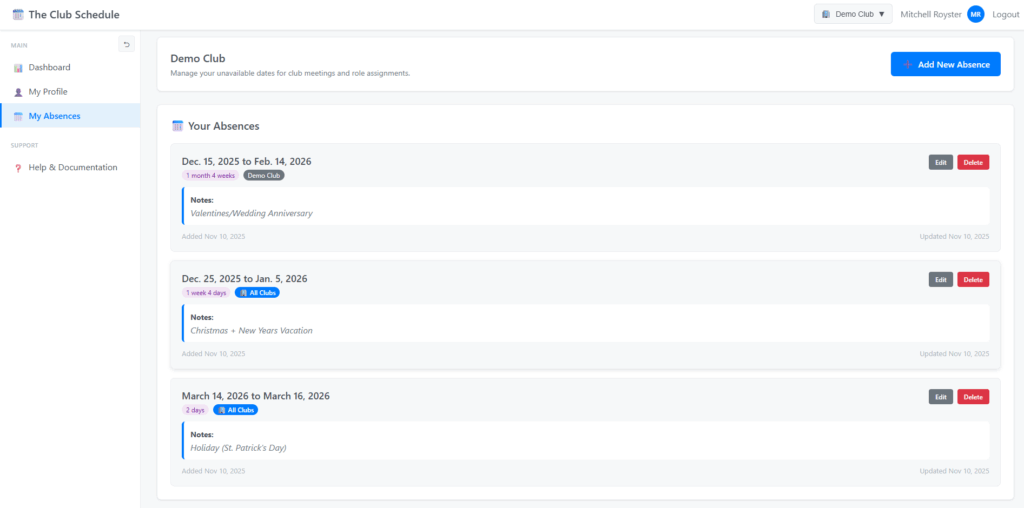
Editing an Absence
- Find the absence in your list
- Click the “Edit” button
- Update dates or notes
- Click “Update Absence”

Deleting an Absence
- Find the absence in your list
- Click the “Delete” button
- Confirm deletion in the popup
- The absence is removed
⚠️ **Note:** Editing or deleting an absence only affects FUTURE schedules, not existing published ones
⚠️ **Note:** This feature may work a little different during the Beta Test period.
Absence Best Practices
✅ Do:
- – Add absences as early as possible
- – Delete absences if you’ll actually be available
- – Include helpful notes for admins (e.g., “Honeymoon – will be back April 15”)
- – Update absences if plans change
Absence Best Practices
❌ Don’t:
- Create absences for single meeting conflicts (just decline the assignment instead)
- Forget to delete absences when you return early
- Leave notes with sensitive personal information (admins can see them)
Privacy & Notes
Who can see what:
✅ **You** can see all your absences and notes
✅ **Club admins** (President, VP Ed, Secretary) can see your absence dates AND notes
❌ **Other members** cannot see your absences or notes
❌ **Other members** don’t see why you weren’t assigned
What Admins See:
- Your name
- Start and end dates
- Your notes (if provided)
- When you created/updated the absence
Frequently Asked Questions
Q: Can I create an absence for just one meeting?
A: Yes! Just set the Start Date and End Date to the same day.
Q: What if I’m already assigned during my absence dates?
A: Absences only affect FUTURE schedule generation. For existing assignments, decline them or contact your VP of Education.
Q: Can I create overlapping absences?
A: Yes, the system allows it (in case you extend a trip). Both absences will be respected.
Q: Do absences expire automatically?
A: No, but past absences are kept for historical records. You can delete old absences anytime.
Q: I forgot to add an absence. Can I still decline roles?
A: Yes! You can always decline role assignments manually, even without a formal absence.